OBS Setup
Use this guide to stream your game to Alpha Stream Hub.
Quick Setup
Use Window Capture. It is the easiest way to switch between games, apps, or whatever window you want to stream.
- Install OBS Studio if you do not already have it.
- Open OBS.
- Go to
Sources→+→Window Capture. - Name it something simple like
Game Window. - Under
Window, pick the game or app you want to stream. - Set
Capture MethodtoWindows 10 (1903 and up)if available. - Check
Capture Audio (BETA). - Click
OK. - Resize the capture in OBS so it fills the preview.
To switch games later, right-click your
Window Capture source, open Properties, and pick a different window from the dropdown.
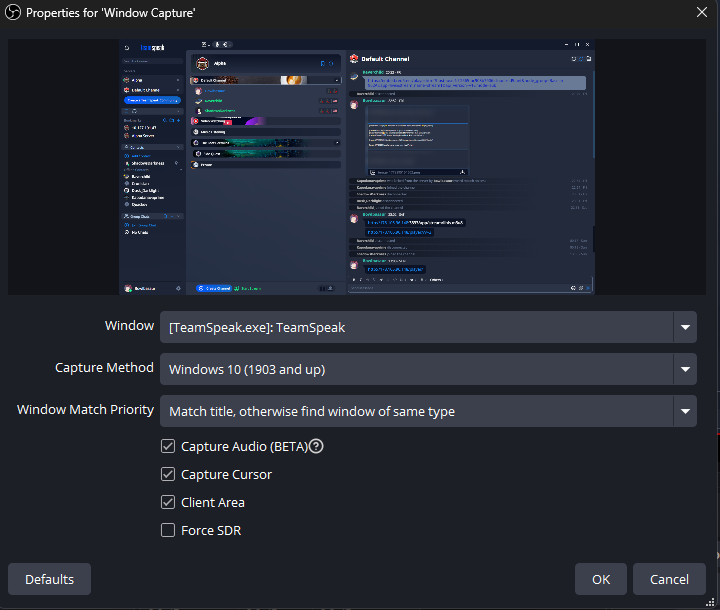
If Capture Audio (BETA) is checked, OBS should add a separate Window Capture audio line to the Audio Mixer. Make sure that meter moves when the game or app makes sound.
Avoid
Desktop Audio unless you need it. Desktop Audio captures everything on your PC, including music, browser audio, TeamSpeak/Discord, and system sounds.
Switching Games or Windows
- In OBS, click your
Window Capturesource. - Click
Properties. - Use the
Windowdropdown to choose the new game or app. - Click
OK. - Check the preview and resize if needed.
You do not need to make a new source every time. Just reuse the same Window Capture source and change the selected window.
Audio Setup
The preferred setup is using the audio from Window Capture.
- Open your
Window Captureproperties. - Make sure
Capture Audio (BETA)is checked. - Click
OK. - Look in the Audio Mixer for a
Window Captureaudio meter. - Play game/app audio and make sure that meter moves.
Do not double-capture audio. If
Window Capture audio is working, mute or disable Desktop Audio so the stream does not echo.
Fallback: Desktop Audio
Only use Desktop Audio if Window Capture audio does not work.
- Go to
Settings→Audio. - Set
Desktop Audioto your main headphones/speakers. - Click
Apply. - Check if
Desktop Audiomoves in the mixer.
Game Capture Fallback
If Window Capture gives you a black screen or will not grab the game, try Game Capture.
- Go to
Sources→+→Game Capture. - Choose
Capture any fullscreen application, or select a specific game window. - Check that the game appears in the OBS preview.
Stream Settings
In OBS, go to Settings → Stream.
Service
CustomServer
rtmp://alphahub.soulblock.net:1935/appStream Key
Copy your Stream Key from Dashboard → Streaming Setup
Do not share your private stream key. Each account has its own Stream Key in the Dashboard, and you can reset it there if needed.
Recommended OBS Output Settings
Go to Settings → Output → Streaming.
Encoder
NVIDIA NVENC H.264 if available. Otherwise use x264.Rate Control
CBRBitrate
4500 Kbps to startKeyframe Interval
1Preset
P3 / PerformanceTuning
Low Latency if availableProfile
HighLook-ahead
OffB-frames
0
Do not use Lossless. Do not use HEVC/H.265 or AV1. Use H.264.
Recommended Video Settings
Go to Settings → Video.
Base Canvas
Your monitor resolution
Output Resolution
1920x1080 to startCommon FPS Values
30 to startIf your stream struggles, drop Output Resolution to 1280x720 or lower bitrate to 3000 Kbps.
Starting Your Stream
- Click
Start Streamingin OBS. - Open Alpha Stream Hub.
- Click your name.
- Low Latency Mode should be the best option. Use Stable Mode if Low Latency has issues.
Troubleshooting
Stream shows offline
- Make sure OBS says you are actually streaming.
- Make sure you used the right private stream key.
- Click
Refresh Streamon the hub.
OBS keeps disconnecting
- Lower bitrate to
3000 Kbps. - Make sure nobody else is using your stream key.
- Make sure you are not using Lossless mode.
Video loads but looks broken
- Make sure Encoder is
H.264. - Do not use
HEVC/H.265. - Do not use
AV1. - Do not use
Lossless.
No game audio
- Check OBS Audio Mixer.
Desktop Audioshould move when the game has sound.- If it does not move, your OBS audio device needs to be changed.